

Introducing PPA Dependency Pinning
PPA maintainers now have more control over where their build dependencies come from. With PPA dependency pinning, you can assign priorities to the PPAs your builds depend on, helping ensure that your packages build against the software you intend to use.
Whether you are testing a patch, maintaining a customised library, or preparing a new release, this feature makes it easier to manage builds that rely on packages outside the standard Ubuntu archive.
NOTE: This setting applies only to package builds performed by Launchpad and can only be set by the PPA maintainer. It does NOT change package selection on users’ computers, nor affect local builds.
Why dependency priorities matter
Personal Package Archives (PPAs) let developers build and distribute packages through Launchpad. When packages in one PPA require packages from another PPA in order to be built, the maintainer can configure the other PPA as a build dependency.
However, making a package available does not necessarily mean it will be selected. When multiple repositories provide the same package at the same priority, Ubuntu’s package manager generally prefers the newer version. APT’s documentation explains these selection rules.
Imagine that your application needs a library containing a patch you maintain in a separate PPA. Your builds will only use that library successfully until an Ubuntu update introduces a package with a higher version number. Subsequent builds will select the Ubuntu version instead, even though it does not contain your patch.
PPA dependency pinning gives you a way to express which source your builds should always prefer by allowing you to assign a priority to each PPA dependency. Launchpad applies those priorities when preparing the build environment.
For the patched-library example, an appropriate priority lets you keep using the library from your chosen PPA, even when Ubuntu publishes a newer version. This reduces the need to adjust package version numbers to influence which source is selected.
Who is this for?
The feature is useful for teams that:
- Test fixes or features that are not yet available in Ubuntu.
- Maintain customised dependencies for their applications.
- Build related projects across several PPAs.
Configure priorities in Launchpad
When Launchpad prepares a build, APT resolves versioning conflicts by selecting the package repository with the highest priority. Some values already have conventional meanings: 500 is the default for available packages, and 990 is generally used for packages from the configured target release. Values above 1000 are especially strong and may cause APT to select a package even when it is an older version. See APT’s documentation for more information.
To get started, open your PPA’s Edit PPA dependencies page and adjust the Priority field beside the relevant dependency. Save your changes to apply the setting to subsequent builds.
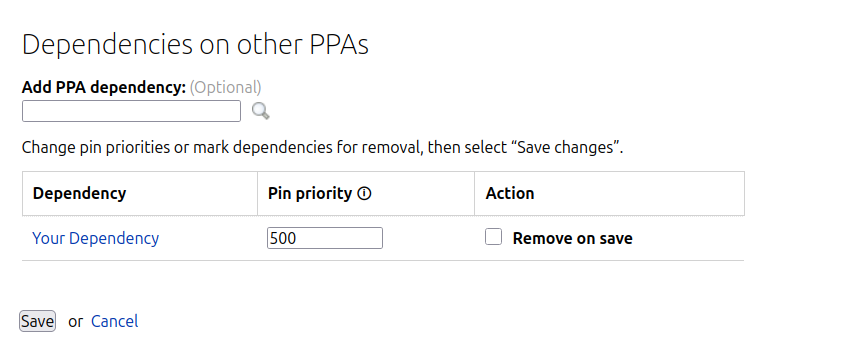
For teams that manage their PPA configuration through scripts or automation, priorities can also be configured through the Launchpad API. This can be done through lp-shell as follows:
# Run: lp-shell production devel


In [1]: target_ppa = lp.people["your-launchpad-id"].getPPAByName(

    name="your-ppa-name"

)

In [2]: dependency_ppa = lp.people["dependency-owner"].getPPAByName(

    name="dependency-ppa-name"

)


In [3]: target_ppa.addArchiveDependency(

    dependency=dependency_ppa,

    pocket="Release",

    component="main",

    pin_priority=1001,

)
Existing dependencies retain the default priority of 500, so there is no configuration change required if the current behaviour meets your needs.
Priorities apply to packages supplied by the dependency PPA, so choose them with the contents of that PPA in mind. They express a source preference; they do not freeze a particular package version or guarantee identical builds over time.
Additionally, PPA dependency pinning only affects the build environment on Launchpad. It does not change package preferences on the computers of people who install software from your PPA.
References
For more information, see:
- apt_preferences(5)
- Launchpad manual’s create a PPA page
- Launchpad API Archive Dependency page
- lp-shell documentation
Tags: announcement
